

20. Functions and Variables
Section titled “20. Functions and Variables”JMeter functions are special values that can populate fields of any Sampler or other element in a test tree. A function call looks like this:
\${__functionName(var1,var2,var3)}
Where “__functionName” matches the name of a function.
Parentheses surround the parameters sent to the function, for example \${__time(YMD)}
The actual parameters vary from function to function.
Functions that require no parameters can leave off the parentheses, for example \${__threadNum}.
If a function parameter contains a comma, then be sure to escape this with “\”, otherwise JMeter will treat it as a parameter delimiter.
For example:
\${__time(EEE\, d MMM yyyy)}If the comma is not escaped - e.g. \${__javaScript(Math.max(2,5))} - you will get an error such as:
ERROR - jmeter.functions.JavaScript: Error processing Javascript: [Math.max(2] org.mozilla.javascript.EvaluatorException: missing ) after argument list (<cmd>#1)This is because the string “Math.max(2,5)” is treated as being two parameters to the __javascript function:
Math.max(2 and 5)
Other error messages are possible.
Variables are referenced as follows:
\${VARIABLE}If an undefined function or variable is referenced, JMeter does not report/log an error - the reference is returned unchanged.
For example if UNDEF is not defined as a variable, then the value of \${UNDEF} is \${UNDEF}.
Variables, functions (and properties) are all case-sensitive.
JMeter trims spaces from variable names before use, so for example
\${__Random(1,63, LOTTERY )} will use the variable ‘LOTTERY’ rather than ‘ LOTTERY ’.
List of functions, loosely grouped into types.
| Information | threadNum | get thread number | 1.X |
| Information | threadGroupName | get thread group name | 4.1 |
| Information | samplerName | get the sampler name (label) | 2.5 |
| Information | machineIP | get the local machine IP address | 2.6 |
| Information | machineName | get the local machine name | 1.X |
| Information | time | return current time in various formats | 2.2 |
| Information | timeShift | return a date in various formats with the specified amount of seconds/minutes/hours/days added | 3.3 |
| Information | log | log (or display) a message (and return the value) | 2.2 |
| Information | logn | log (or display) a message (empty return value) | 2.2 |
| Input | StringFromFile | read a line from a file | 1.9 |
| Input | FileToString | read an entire file | 2.4 |
| Input | CSVRead | read from CSV delimited file | 1.9 |
| Input | XPath | Use an XPath expression to read from a file | 2.0.3 |
| Input | StringToFile | write a string to a file | 5.2 |
| Calculation | counter | generate an incrementing number | 1.X |
| Formatting | dateTimeConvert | Convert a date or time from source to target format | 4.0 |
| Calculation | digest | Generate a digest (SHA-1, SHA-256, MD5…) | 4.0 |
| Calculation | intSum | add int numbers | 1.8.1 |
| Calculation | longSum | add long numbers | 2.3.2 |
| Calculation | Random | generate a random number | 1.9 |
| Calculation | RandomDate | generate random date within a specific date range | 3.3 |
| Calculation | RandomFromMultipleVars | extracts an element from the values of a set of variables separated by ` | ` |
| Calculation | RandomString | generate a random string | 2.6 |
| Calculation | UUID | generate a random type 4 UUID | 2.9 |
| Scripting | groovy | run an Apache Groovy script | 3.1 |
| Scripting | BeanShell | run a BeanShell script | 1.X |
| Scripting | javaScript | process JavaScript (Nashorn) | 1.9 |
| Scripting | jexl2 | evaluate a Commons Jexl2 expression | jexl2(2.1.1) |
| Scripting | jexl3 | evaluate a Commons Jexl3 expression | jexl3 (3.0) |
| Properties | isPropDefined | Test if a property exists | 4.0 |
| Properties | property | read a property | 2.0 |
| Properties | P | read a property (shorthand method) | 2.0 |
| Properties | setProperty | set a JMeter property | 2.1 |
| Variables | split | Split a string into variables | 2.0.2 |
| Variables | eval | evaluate a variable expression | 2.3.1 |
| Variables | evalVar | evaluate an expression stored in a variable | 2.3.1 |
| Properties | isVarDefined | Test if a variable exists | 4.0 |
| Variables | V | evaluate a variable name | 2.3RC3 |
| String | char | generate Unicode char values from a list of numbers | 2.3.3 |
| String | changeCase | Change case following different modes | 4.0 |
| String | escapeHtml | Encode strings using HTML encoding | 2.3.3 |
| String | escapeOroRegexpChars | quote meta chars used by ORO regular expression | 2.9 |
| String | escapeXml | Encode strings using XMl encoding | 3.2 |
| String | regexFunction | parse previous response using a regular expression | 1.X |
| String | unescape | Process strings containing Java escapes (e.g. \n & \t) | 2.3.3 |
| String | unescapeHtml | Decode HTML-encoded strings | 2.3.3 |
| String | urldecode | Decode a application/x-www-form-urlencoded string | 2.10 |
| String | urlencode | Encode a string to a application/x-www-form-urlencoded string | 2.10 |
| String | TestPlanName | Return name of current test plan | 2.6 |
20.1 What can functions do
Section titled “20.1 What can functions do”There are two kinds of functions: user-defined static values (or variables), and built-in functions.
User-defined static values allow the user to define variables to be replaced with their static value when a test tree is compiled and submitted to be run. This replacement happens once at the beginning of the test run. This could be used to replace the DOMAIN field of all HTTP requests, for example - making it a simple matter to change a test to target a different server with the same test.
Note that variables cannot currently be nested; i.e. \${Var\${N}} does not work.
The __V (variable) function can be used to do this: \${__V(Var\${N})}.
You can also use \${__BeanShell(vars.get("Var\${N}")}.
This type of replacement is possible without functions, but was less convenient and less intuitive. It required users to create default config elements that would fill in blank values of Samplers. Variables allow one to replace only part of any given value, not just filling in blank values.
With built-in functions users can compute new values at run-time based on previous response data, which thread the function is in, the time, and many other sources. These values are generated fresh for every request throughout the course of the test.
20.2 Where can functions and variables be used?
Section titled “20.2 Where can functions and variables be used?”Functions and variables can be written into any field of any test component (apart from the TestPlan - see below). Some fields do not allow random strings because they are expecting numbers, and thus will not accept a function. However, most fields will allow functions.
Functions which are used on the Test Plan have some restrictions.
JMeter thread variables will have not been fully set up when the functions are processed,
so variable names passed as parameters will not be set up, and variable references will not work,
so split() and regex() and the variable evaluation functions won’t work.
The threadNum() function won’t work (and does not make sense at test plan level).
The following functions should work OK on the test plan:
- intSum
- longSum
- machineName
- BeanShell
- groovy
- javaScript
- jexl2/jexl3
- random
- time
- property functions
- log functions
Configuration elements are processed by a separate thread.
Therefore functions such as __threadNum do not work properly in elements such as User Defined Variables.
Also note that variables defined in a UDV element are not available until the element has been processed.
20.3 How to reference variables and functions
Section titled “20.3 How to reference variables and functions”Referencing a variable in a test element is done by bracketing the variable name with ‘\${’ and ‘}’.
Functions are referenced in the same manner, but by convention, the names of
functions begin with “__” to avoid conflict with user value names*. Some functions take arguments to
configure them, and these go in parentheses, comma-delimited. If the function takes no arguments, the parentheses can
be omitted.
Argument values that themselves contain commas should be escaped as necessary.
If you need to include a comma in your parameter value, escape it like so: ‘\,’.
This applies for example to the scripting functions - Javascript, Beanshell, Jexl, groovy - where it is necessary to escape any commas
that may be needed in script method calls - e.g.
\${__BeanShell(vars.put("name"\,"value"))}Alternatively, you can define your script as a variable, e.g. on the Test Plan:
SCRIPT vars.put("name","value")The script can then be referenced as follows:
\${__BeanShell(\${SCRIPT})}There is no need to escape commas in the SCRIPT variable because the function call is parsed before the variable is replaced with its value.
This works well in conjunction with the JSR223 or BeanShell Samplers, as these can be used to test Javascript, Jexl and BeanShell scripts.
Functions can reference variables and other functions, for example
\${__XPath(\${__P(xpath.file),\${XPATH})}
will use the property “xpath.file” as the file name
and the contents of the variable XPATH as the expression to search for.
JMeter provides a tool to help you construct function calls for various built-in functions, which you can then copy-paste. It will not automatically escape values for you, since functions can be parameters to other functions, and you should only escape values you intend as literal.
The value of a variable or function can be reported using the __logn() function.
The __logn() function reference can be used anywhere in the test plan after the variable has been defined.
Alternatively, the Java Request sampler can be used to create a sample containing variable references;
the output will be shown in the appropriate Listener.
Note there is a Debug Sampler
that can be used to display the values of variables etc. in the Tree View Listener.
20.4 The Function Helper Dialog
Section titled “20.4 The Function Helper Dialog”The Function Helper dialog is available from JMeter’s Tools menu.
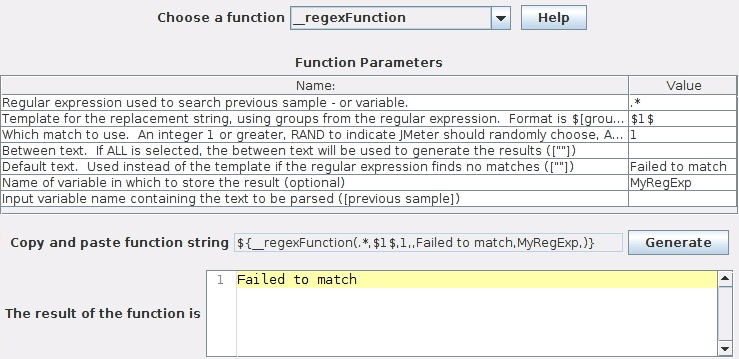 Function Helper Dialog
Using the Function Helper, you can select a function from the pull down, and assign values for its arguments. The left column in the table provides a brief description of the argument, and the right column is where you write in the value for that argument. Different functions take different arguments.
Once you have done this, click the “generate” button, and the appropriate string is generated for you to copy-paste into your test plan wherever you like.
20.5 Functions
Section titled “20.5 Functions”__regexFunction
Section titled “__regexFunction”The Regex Function is used to parse the previous response (or the value of a variable) using any regular expression (provided by user). The function returns the template string with variable values filled in.
The __regexFunction can also store values for future use. In the sixth parameter, you can specify
a reference name. After this function executes, the same values can be retrieved at later times
using the syntax for user-defined values. For instance, if you enter “refName” as the sixth
parameter you will be able to use:
\${refName}to refer to the computed result of the second parameter (“Template for the replacement string”) parsed by this function\${refName_g0}to refer to the entire match parsed by this function.\${refName_g1}to refer to the first group parsed by this function.\${refName_g#}to refer to the nth group parsed by this function.\${refName_matchNr}to refer to the number of groups found by this function.
| Name | Required | Description |
|---|---|---|
| First argument | Yes | The first argument is the regular expression to be applied to the response data. It will grab all matches. Any parts of this expression that you wish to use in your template string, be sure to surround in parentheses. Example: <a href="(.*)">. This will grab the value of the link and store it as the first group (there is only 1 group). Another example: <input type="hidden" name="(.*)" value="(.*)">. This will grab the name as the first group, and the value as the second group. These values can be used in your template string |
| Second argument | Yes | This is the template string that will replace the function at run-time. To refer to a group captured in the regular expression, use the syntax: $[group_number]$. I.e.: $1$, or $2$. Your template can be any string. |
| Third argument | No, default=1 | The third argument tells JMeter which match to use. Your regular expression might find numerous matches. You have four choices: - An integer - Tells JMeter to use that match. ‘1’ for the first found match, ‘2’ for the second, and so on - RAND - Tells JMeter to choose a match at random. - ALL - Tells JMeter to use all matches, and create a template string for each one and then append them all together. This option is little used. - A float number between 0 and 1 - tells JMeter to find the Xth match using the formula: (number_of_matches_found * float_number) rounded to nearest integer. |
| Fourth argument | No | If ‘ALL’ was selected for the above argument value, then this argument will be inserted between each appended copy of the template value. |
| Fifth argument | No | Default value returned if no match is found |
| Sixth argument | No | A reference name for reusing the values parsed by this function. Stored values are \${refName} (the replacement template string) and \${refName_g#} where “#” is the group number from the regular expression (“0” can be used to refer to the entire match). |
| Seventh argument | No | Input variable name. If specified, then the value of the variable is used as the input instead of using the previous sample result. |
__counter
Section titled “__counter”The counter generates a new number each time it is called, starting with 1 and incrementing by +1 each time. The counter can be configured to keep each simulated user’s values separate, or to use the same counter for all users. If each user’s values is incremented separately, that is like counting the number of iterations through the test plan. A global counter is like counting how many times that request was run.
The counter uses an integer variable to hold the count, which therefore has a maximum of 2,147,483,647.
The counter function instances are completely independent.
The global counter - “FALSE” - is separately maintained by each counter instance.
Multiple __counter function calls in the same iteration won’t increment the value further.
If you want to have a count that increments for each sample, use the function in a Pre-Processor such as User Parameters.
| Name | Required | Description |
|---|---|---|
| First argument | Yes | TRUE if you wish each simulated user’s counter to be kept independent and separate from the other users. FALSE for a global counter. |
| Second argument | No | A reference name for reusing the value created by this function. Stored values are of the form \${refName}. This allows you to keep one counter and refer to its value in multiple places. |
__threadNum
Section titled “__threadNum”The thread number function simply returns the number of the thread currently being executed. These numbers are only locally unique with respect to their ThreadGroup, meaning thread #1 in one threadgroup is indistinguishable from thread #1 in another threadgroup, from the point of view of this function.
There are no arguments for this function.
Usage Example:
\${__threadNum}returns a number between 1 and the max number of running threads configured in the containing Thread Group
__threadGroupName
Section titled “__threadGroupName”The thread group name function simply returns the name of the thread group being executed.
There are no arguments for this function.
Usage Example:
\${__threadGroupName}__intSum
Section titled “__intSum”The intSum function can be used to compute the sum of two or more integer values.
| Name | Required | Description |
|---|---|---|
| First argument | Yes | The first int value. |
| Second argument | Yes | The second int value. |
| nth argument | No | The nth int value. |
| last argument | No | A reference name for reusing the value computed by this function. If specified, the reference name must contain at least one non-numeric character otherwise it will be treated as another int value to be added. |
Examples:
\${__intSum(2,5,MYVAR)}will return 7 (2+5) and store the result in MYVAR variable. So \${MYVAR} will be equal to 7.
\${__intSum(2,5,7)}will return 14 (2+5+7) and store the result in MYVAR variable.
\${__intSum(1,2,5,\${MYVAR})}will return 16 if MYVAR value is equal to 8, 1+2+5+${MYVAR})
__longSum
Section titled “__longSum”The longSum function can be used to compute the sum of two or more long values, use this instead of __intSum whenever you know your values will not be in the interval -2147483648 to 2147483647.
| Name | Required | Description |
|---|---|---|
| First argument | Yes | The first long value. |
| Second argument | Yes | The second long value. |
| nth argument | No | The nth long value. |
| last argument | No | A reference name for reusing the value computed by this function. If specified, the reference name must contain at least one non-numeric character otherwise it will be treated as another long value to be added. |
Examples:
\${__longSum(2,5,MYVAR)}will return 7 (2+5) and store the result in MYVAR variable. So \${MYVAR} will be equal to 7.
\${__longSum(2,5,7)}will return 14 (2+5+7) and store the result in MYVAR variable.
\${__longSum(1,2,5,\${MYVAR})}will return 16 if MYVAR value is equal to 8, 1+2+5+${MYVAR})
__StringFromFile
Section titled “__StringFromFile”The StringFromFile function can be used to read strings from a text file. This is useful for running tests that require lots of variable data. For example when testing a banking application, 100s or 1000s of different account numbers might be required.
See also the CSV Data Set Config test element which may be easier to use. However, that does not currently support multiple input files.
Each time it is called it reads the next line from the file. All threads share the same instance, so different threads will get different lines. When the end of the file is reached, it will start reading again from the beginning, unless the maximum loop count has been reached. If there are multiple references to the function in a test script, each will open the file independently, even if the file names are the same. [If the value is to be used again elsewhere, use different variable names for each function call.]
If an error occurs opening or reading the file, then the function returns the string “**ERR**”
| Name | Required | Description |
|---|---|---|
| File Name | Yes | Path to the file name. (The path can be relative to the JMeter launch directory) If using optional sequence numbers, the path name should be suitable for passing to DecimalFormat. See below for examples. |
| Variable Name | No | A reference name - refName - for reusing the value created by this function. Stored values are of the form \${refName}. Defaults to “StringFromFile_”. |
| Start sequence number | No | Initial Sequence number (if omitted, the End sequence number is treated as a loop count) |
| End sequence number | No | Final sequence number (if omitted, sequence numbers can increase without limit) |
The file name parameter is resolved when the file is opened or re-opened.
The reference name parameter (if supplied) is resolved every time the function is executed.
Using sequence numbers:
When using the optional sequence numbers, the path name is used as the format string for java.text.DecimalFormat.
The current sequence number is passed in as the only parameter.
If the optional start number is not specified, the path name is used as is.
Useful formatting sequences are:
#
: insert the number, with no leading zeros or spaces
000
: insert the number packed out to three digits with leading zeros if necessary
Usage of format strings
Section titled “Usage of format strings”Here are a few format strings and the corresponding sequences they will generate.
pin#'.'dat
: Will generate the digits without leading zeros and treat the dot literally like
pin1.dat, …, pin9.dat, pin10.dat, …, pin9999.dat
pin000'.'dat
: Will generate leading zeros while keeping the dot. When the numbers start having more digits
then those three digits that this format suggests, the sequence will use more digits as can be seen in
pin001.dat, … pin099.dat, …, pin999.dat, …, pin9999.dat
pin'.'dat#
: Will append digits without leading zeros while keeping the dot and generate
pin.dat1, …, pin.dat9, …, pin.dat999
If more digits are required than there are formatting characters, the number will be expanded as necessary.
To prevent a formatting character from being interpreted,
enclose it in single quotes. Note that “.” is a formatting character,
and must be enclosed in single quotes
(though #. and 000. work as expected in locales where the decimal point is also “.”)
In other locales (e.g. fr), the decimal point is “,” - which means that “#.”
becomes “nnn,”.
See the documentation for DecimalFormat for full details.
If the path name does not contain any special formatting characters, the current sequence number will be appended to the name, otherwise the number will be inserted according to the formatting instructions.
If the start sequence number is omitted, and the end sequence number is specified,
the sequence number is interpreted as a loop count, and the file will be used at most “end” times.
In this case the filename is not formatted.
\${__StringFromFile(PIN#'.'DAT,,1,2)} - reads PIN1.DAT, PIN2.DAT
\${__StringFromFile(PIN.DAT,,,2)} - reads PIN.DAT twice
Note that the “.” in PIN.DAT above should not be quoted.
In this case the start number is omitted, so the file name is used exactly as is.
__machineName
Section titled “__machineName”The machineName function returns the local host name. This uses the Java method InetAddress.getLocalHost() and passes it to getHostName()
| Name | Required | Description |
|---|---|---|
| Variable Name | No | A reference name for reusing the value computed by this function. |
Examples:
\${__machineName()}will return the host name of the machine
\${__machineName}will return the host name of the machine
__machineIP
Section titled “__machineIP”The machineIP function returns the local IP address. This uses the Java method InetAddress.getLocalHost() and passes it to getHostAddress()
| Name | Required | Description |
|---|---|---|
| Variable Name | No | A reference name for reusing the value computed by this function. |
Examples:
\${__machineIP()}will return the IP address of the machine
\${__machineIP}will return the IP address of the machine
__javaScript
Section titled “__javaScript”The javaScript function executes a piece of JavaScript (not Java!) code and returns its value
The JMeter Javascript function calls a standalone JavaScript interpreter. Javascript is used as a scripting language, so you can do calculations etc.
For Nashorn Engine, please see Java Platform, Standard Edition Nashorn User’s Guide.
For Rhino engine, please see Mozilla Rhino Overview
The following variables are made available to the script:
log- the Logger for the functionctx- JMeterContext objectvars- JMeterVariables objectthreadName- String containing the current thread namesampler- current Sampler object (if any)sampleResult- previous SampleResult object (if any)props- JMeterProperties (classjava.util.Properties) object
Rhinoscript allows access to static methods via its Packages object.
See the Scripting Java documentation.
For example one can access the JMeterContextService static methods thus:
Java.type("org.apache.jmeter.threads.JMeterContextService").getTotalThreads()
| Name | Required | Description |
|---|---|---|
| Expression | Yes | The JavaScript expression to be executed. For example: - new Date() - return the current date and time - Math.floor(Math.random()*(\${maxRandom}+1)) - a random number between 0 and the variable maxRandom - \${minRandom}+Math.floor(Math.random()*(\${maxRandom}-\${minRandom}+1)) - a random number between the variables minRandom and maxRandom - "\${VAR}"=="abcd" |
| Variable Name | No | A reference name for reusing the value computed by this function. |
Examples:
\${__javaScript(new Date())}will return Sat Jan 09 2016 16:22:15 GMT+0100 (CET)
\${__javaScript(new Date(),MYDATE)}will return Sat Jan 09 2016 16:22:15 GMT+0100 (CET) and store it under variable MYDATE
\${__javaScript(Math.floor(Math.random()*(\${maxRandom}+1)),MYRESULT)}will use maxRandom variable, return a random value between 0 and maxRandom and store it in MYRESULT
\${__javaScript(\${minRandom}+Math.floor(Math.random()*(\${maxRandom}-\${minRandom}+1)),MYRESULT)}will use maxRandom and minRandom variables, return a random value between maxRandom and minRandom and store it under variable MYRESULT
\${__javaScript("\${VAR}"=="abcd",MYRESULT)}will compare the value of VAR variable with abcd, return true or false and store the result in MYRESULT
__Random
Section titled “__Random”The random function returns a random number that lies between the given min and max values.
| Name | Required | Description |
|---|---|---|
| Minimum value | Yes | A number |
| Maximum value | Yes | A bigger number |
| Variable Name | No | A reference name for reusing the value computed by this function. |
Examples:
\${__Random(0,10)}will return a random number between 0 and 10
\${__Random(0,10, MYVAR)}will return a random number between 0 and 10 and store it in MYVAR. \${MYVAR} will contain the random number
__RandomDate
Section titled “__RandomDate”The RandomDate function returns a random date that lies between the given start date and end date values.
| Name | Required | Description |
|---|---|---|
| Time format | No | Format string for DateTimeFormatter (default yyyy-MM-dd) |
| Start date | No | The start date, the default is now |
| End date | Yes | The end date |
| Locale to use for format | No | The string format of a locale. The language code must be lowercase. The country code must be uppercase. The separator must be an underscore, e.g. en_EN. See http://www.oracle.com/technetwork/java/javase/javase7locales-334809.html. If omitted, by default the function uses the Apache JMeter locale one. |
| Name of variable | No | The name of the variable to set. |
Examples:
\${__RandomDate(,,2050-07-08,,)}will return a random date between now and 2050-07-08. For example 2039-06-21
\${__RandomDate(dd MM yyyy,,08 07 2050,,)}will return a random date with a custom format like 04 03 2034
__RandomString
Section titled “__RandomString”The RandomString function returns a random String of length using characters in chars to use.
| Name | Required | Description |
|---|---|---|
| Length | Yes | A number length of generated String |
| Characters to use | No | Chars used to generate String |
| Variable Name | No | A reference name for reusing the value computed by this function. |
Examples:
\${__RandomString(5)}will return a random string of 5 characters which can be readable or not
\${__RandomString(10,abcdefg)}will return a random string of 10 characters picked from abcdefg set, like cdbgdbeebd or adbfeggfad, …
\${__RandomString(6,a12zeczclk, MYVAR)}will return a random string of 6 characters picked from a12zeczclk set and store the result in MYVAR, MYVAR will contain
string like 2z22ak or z11kce, …
__RandomFromMultipleVars
Section titled “__RandomFromMultipleVars”The RandomFromMultipleVars function returns a random value based on the variable values provided by Source Variables.
The variables can be simple or multi-valued as they can be generated by the following extractors:
- Boundary Extractor
- Regular Expression Extractor
- CSS Selector Extractor
- JSON Extractor
- XPath Extractor
- XPath2 Extractor
Multi-value vars are the ones that are extracted when you set -1 for Match Numbers.
This leads to creation of match number variable called varName_matchNr and for each value to the creation of variable varName_n where n = 1, 2, 3 etc.
| Name | Required | Description |
|---|---|---|
| Source Variables | Yes | Variable names separated by ` |
| Variable Name | No | A reference name for reusing the value computed by this function. |
Examples:
\${__RandomFromMultipleVars(val)}will return a random string based on content of variable val taking into account whether they are multi-value or not
\${__RandomFromMultipleVars(val1|val2)}will return a random string based on content of variables val1 and val2 taking into account whether they are multi-value or not
\${__RandomFromMultipleVars(val1|val2, MYVAR)}will return a random string based on content of variables val1 and val2 taking into account whether they are multi-value or not and store the result in MYVAR
__UUID
Section titled “__UUID”The UUID function returns a pseudo random type 4 Universally Unique IDentifier (UUID).
Examples:
\${__UUID()}will return UUIDs with this format : c69e0dd1-ac6b-4f2b-8d59-5d4e8743eecd
__CSVRead
Section titled “__CSVRead”The CSVRead function returns a string from a CSV file (c.f. StringFromFile)
NOTE: JMeter supports multiple file names.
In most cases, the newer CSV Data Set Config element is easier to use.When a filename is first encountered, the file is opened and read into an internal array. If a blank line is detected, this is treated as end of file - this allows trailing comments to be used.
All subsequent references to the same file name use the same internal array.
N.B. the filename case is significant to the function, even if the OS doesn’t care,
so CSVRead(abc.txt,0) and CSVRead(aBc.txt,0) would refer to different internal arrays.
The *ALIAS feature allows the same file to be opened more than once,
and also allows for shorter file names.
Each thread has its own internal pointer to its current row in the file array. When a thread first refers to the file it will be allocated the next free row in the array, so each thread will access a different row from all other threads. [Unless there are more threads than there are rows in the array.]
| Name | Required | Description |
|---|---|---|
| File Name | Yes | The file (or *ALIAS) to read from |
| Column number | Yes | The column number in the file. 0 = first column, 1 = second etc. “next” - go to next line of file. *ALIAS - open a file and assign it to the alias |
For example, you could set up some variables as follows:
- COL1a
\${__CSVRead(random.txt,0)} - COL2a
\${__CSVRead(random.txt,1)}\${__CSVRead(random.txt,next)} - COL1b
\${__CSVRead(random.txt,0)} - COL2b
\${__CSVRead(random.txt,1)}\${__CSVRead(random.txt,next)}
This would read two columns from one line, and two columns from the next available line. If all the variables are defined on the same User Parameters Pre-Processor, then the lines will be consecutive. Otherwise, a different thread may grab the next line.
__property
Section titled “__property”The property function returns the value of a JMeter property. If the property value cannot be found, and no default has been supplied, it returns the property name. When supplying a default value, there is no need to provide a function name - the parameter can be set to null, and it will be ignored.
For example:
\${__property(user.dir)}- return value ofuser.dir\${__property(user.dir,UDIR)}- return value ofuser.dirand save inUDIR\${__property(abcd,ABCD,atod)}- return value of propertyabcd(or “atod” if not defined) and save inABCD\${__property(abcd,,atod)}- return value of propertyabcd(or “atod” if not defined) but don’t save it
| Name | Required | Description |
|---|---|---|
| Property Name | Yes | The property name to be retrieved. |
| Variable Name | No | A reference name for reusing the value computed by this function. |
| Default Value | No | The default value for the property. |
This is a simplified property function which is
intended for use with properties defined on the command line.
Unlike the __property function, there is no option to save the value in a variable,
and if no default value is supplied, it is assumed to be 1.
The value of 1 was chosen because it is valid for common test variables such
as loops, thread count, ramp up etc.
For example: ` Define the property value:
jmeter -Jgroup1.threads=7 -Jhostname1=www.realhost.eduFetch the values:
\${__P(group1.threads)} - return the value of group1.threads
\${__P(group1.loops)} - return the value of group1.loops
\${__P(hostname,www.dummy.org)} - return value of property hostname or www.dummy.org if not defined
In the examples above, the first function call would return7, the second would return 1and the last would returnwww.dummy.org`
(unless those properties were defined elsewhere!)
| Name | Required | Description |
|---|---|---|
| Property Name | Yes | The property name to be retrieved. |
| Default Value | No | The default value for the property. If omitted, the default is set to “1”. |
The log function logs a message, and returns its input string
| Name | Required | Description |
|---|---|---|
| String to be logged | Yes | A string |
| Log Level | No | OUT, ERR, DEBUG, INFO (default), WARN or ERROR |
| Throwable text | No | If non-empty, creates a Throwable to pass to the logger |
| Comment | No | If present, it is displayed in the string. Useful for identifying what is being logged. |
The OUT and ERR log level names are used to direct the output to System.out and System.err respectively.
In this case, the output is always printed - it does not depend on the current log setting.
For example:
\$\{__log(Message)\}
: written to the log file as “ … thread Name : Message”
\$\{__log(Message,OUT)\}
: written to console window
\$\{__log(\$\{VAR\},,,VAR=)\}
: written to log file as “ … thread Name VAR=value”
__logn
Section titled “__logn”The logn function logs a message, and returns the empty string
| Name | Required | Description |
|---|---|---|
| String to be logged | Yes | A string |
| Log Level | No | OUT, ERR, DEBUG, INFO (default), WARN or ERROR |
| Throwable text | No | If non-empty, creates a Throwable to pass to the logger |
The OUT and ERR log level names are used to direct the output to System.out and System.err respectively.
In this case, the output is always printed - it does not depend on the current log setting.
For example:
\$\{__logn(VAR1=\$\{VAR1\},OUT)\}
: write the value of the variable to the console window
__BeanShell
Section titled “__BeanShell”The BeanShell function evaluates the script passed to it, and returns the result.
For full details on using BeanShell, please see the BeanShell web-site at http://www.beanshell.org/
A single instance of a function may be called from multiple threads.
However the function execute() method is synchronised.
If the property “beanshell.function.init” is defined, it is passed to the Interpreter
as the name of a sourced file. This can be used to define common methods and variables. There is a
sample init file in the bin directory: BeanShellFunction.bshrc.
The following variables are set before the script is executed:
log- the Logger for the BeanShell function (*)ctx- JMeterContext objectvars- JMeterVariables objectprops- JMeterProperties (classjava.util.Properties) objectthreadName- the threadName (String)Sampler- the current Sampler, if anySampleResult- the current SampleResult, if any
(*) means that this is set before the init file, if any, is processed. Other variables vary from invocation to invocation.
| Name | Required | Description |
|---|---|---|
| BeanShell script | Yes | A beanshell script (not a file name) |
| Name of variable | No | A reference name for reusing the value computed by this function. |
Example:
\$\{__BeanShell(123*456)\}
: returns 56088
\$\{__BeanShell(source("function.bsh"))\}
: processes the script in function.bsh
__groovy
Section titled “__groovy”The __groovy function evaluates Apache Groovy scripts passed to it, and returns the result.
If the property “groovy.utilities” is defined, it will be loaded by the ScriptEngine.
This can be used to define common methods and variables. There is a
sample init file in the bin directory: utility.groovy.
The following variables are set before the script is executed:
log- the Logger for the groovy function (*)ctx- JMeterContext objectvars- JMeterVariables objectprops- JMeterProperties (classjava.util.Properties) objectthreadName- the threadName (String)sampler- the current Sampler, if anyprev- the previous SampleResult, if anyOUT- System.out
(*) means that this is set before the init file, if any, is processed. Other variables vary from invocation to invocation.
For instance don’t do the following:
\${__groovy("\${myVar}".substring(0\,2))}Imagine that the variable myVar changes with each transaction, the Groovy above cannot be cached as the script changes each time.
Instead do the following, which can be cached:
\${__groovy(vars.get("myVar").substring(0\,2))}| Name | Required | Description |
|---|---|---|
| Expression to evaluate | Yes | An Apache Groovy script (not a file name) :::note Argument values that themselves contain commas should be escaped as necessary. If you need to include a comma in your parameter value, escape it like this: ‘\,’ ::: |
| Name of variable | No | A reference name for reusing the value computed by this function. |
Example:
\${__groovy(123*456)}: returns 56088
\${__groovy(vars.get("myVar").substring(0\,2))}: If var’s value is JMeter, it will return JM as it runs String.substring(0,2). Note
that , has been escaped to \,
__split
Section titled “__split”The split function splits the string passed to it according to the delimiter,
and returns the original string. If any delimiters are adjacent, “?” is returned as the value.
The split strings are returned in the variables \${VAR_1}, \${VAR_2} etc.
The count of variables is returned in \${VAR_n}.
A trailing delimiter is treated as a missing variable, and “?” is returned.
Also, to allow it to work better with the ForEach controller,
__split now deletes the first unused variable in case it was set by a previous split.
Example:
Define VAR=“a||c|” in the test plan.
\${__split(\${VAR},VAR,|)}This will return the contents of VAR, i.e. “a||c|” and set the following variables:
VAR_n=4
VAR_1=a
VAR_2=?
VAR_3=c
VAR_4=?
VAR_5=null
| Name | Required | Description |
|---|---|---|
| String to split | Yes | A delimited string, e.g. “`a |
| Name of variable | Yes | A reference name for reusing the value computed by this function. |
| Delimiter | No | The delimiter character, e.g. ` |
__XPath
Section titled “__XPath”The XPath function reads an XML file and matches the XPath. Each time the function is called, the next match will be returned. At end of file, it will wrap around to the start. If no nodes matched, then the function will return the empty string, and a warning message will be written to the JMeter log file.
Example:
\${__XPath(/path/to/build.xml, //target/@name)}This will match all targets in build.xml and return the contents of the next name attribute
| Name | Required | Description |
|---|---|---|
| XML file to parse | Yes | a XML file to parse |
| XPath | Yes | a XPath expression to match nodes in the XML file |
__setProperty
Section titled “__setProperty”The setProperty function sets the value of a JMeter property. The default return value from the function is the empty string, so the function call can be used anywhere functions are valid.
The original value can be returned by setting the optional 3rd parameter to “true”.
Properties are global to JMeter, so can be used to communicate between threads and thread groups
| Name | Required | Description |
|---|---|---|
| Property Name | Yes | The property name to be set. |
| Property Value | Yes | The value for the property. |
| True/False | No | Should the original value be returned? |
__time
Section titled “__time”The time function returns the current time in various formats.
| Name | Required | Description |
|---|---|---|
| Format | No | The format to be passed to DateTimeFormatter. The function supports various shorthand aliases, see below. If omitted, the function returns the current time in milliseconds since the epoch. |
| Name of variable | No | The name of the variable to set. |
If the format string is omitted, then the function returns the current time in milliseconds since the epoch.
If the format matches “/ddd” (where ddd are decimal digits),
then the function returns the current time in milliseconds divided by the value of ddd.
For example, “/1000” returns the current time in seconds since the epoch.
Otherwise, the current time is passed to DateTimeFormatter.
The following shorthand aliases are provided:
YMD=yyyyMMddHMS=HHmmssYMDHMS=yyyyMMdd-HHmmssUSER1= whatever is in the JMeter propertytime.USER1USER2= whatever is in the JMeter propertytime.USER2
The defaults can be changed by setting the appropriate JMeter property, e.g.
time.YMD=yyMMdd
\${__time(dd/MM/yyyy,)}will return 21/01/2018 if ran on 21 january 2018
\${__time(YMD,)}will return 20180121 if ran on 21 january 2018
\${__time()}will return time in millis 1516540541624
__jexl2
Section titled “__jexl2”The jexl function returns the result of evaluating a Commons JEXL expression. See links below for more information on JEXL expressions.
The __jexl2 function uses Commons JEXL 2
| Name | Required | Description |
|---|---|---|
| Expression | Yes | The expression to be evaluated. For example, 6*(5+2) |
| Name of variable | No | The name of the variable to set. |
The following variables are made available to the script:
-
log- the Logger for the function -
ctx- JMeterContext object -
vars- JMeterVariables object -
props- JMeterProperties (classjava.util.Properties) object -
threadName- String containing the current thread name -
sampler- current Sampler object (if any) -
sampleResult- previous SampleResult object (if any) -
OUT- System.out - e.g.OUT.println("message")Jexl can also create classes and call methods on them, for example:
Systemclass=log.class.forName("java.lang.System");now=Systemclass.currentTimeMillis();Note that the Jexl documentation on the web-site wrongly suggests that “div” does integer division.
In fact “div” and “/” both perform normal division. One can get the same effect
as follows:
i= 5 / 2;i.intValue(); // or use i.longValue()__jexl3
Section titled “__jexl3”The jexl function returns the result of evaluating a Commons JEXL expression. See links below for more information on JEXL expressions.
The __jexl3 function uses Commons JEXL 3
| Name | Required | Description |
|---|---|---|
| Expression | Yes | The expression to be evaluated. For example, 6*(5+2) |
| Name of variable | No | The name of the variable to set. |
The following variables are made available to the script:
-
log- the Logger for the function -
ctx- JMeterContext object -
vars- JMeterVariables object -
props- JMeterProperties (classjava.util.Properties) object -
threadName- String containing the current thread name -
sampler- current Sampler object (if any) -
sampleResult- previous SampleResult object (if any) -
OUT- System.out - e.g.OUT.println("message")Jexl can also create classes and call methods on them, for example:
Systemclass=log.class.forName("java.lang.System");now=Systemclass.currentTimeMillis();Note that the Jexl documentation on the web-site wrongly suggests that “div” does integer division.
In fact “div” and “/” both perform normal division. One can get the same effect
as follows:
i= 5 / 2;i.intValue(); // or use i.longValue()The V (variable) function returns the result of evaluating a variable name expression. This can be used to evaluate nested variable references (which are not currently supported).
For example, if one has variables A1,A2 and N=1:
\${A1}- works OK\${A\${N}}- does not work (nested variable reference)\${__V(A\${N})}- works OK.A\${N}becomesA1, and the__Vfunction returns the value ofA1
| Name | Required | Description |
|---|---|---|
| Variable name | Yes | The variable to be evaluated. |
| Default value | No | The default value in case no variable found, if it’s empty and no variable found function returns the variable name |
__evalVar
Section titled “__evalVar”The evalVar function returns the result of evaluating an expression stored in a variable.
This allows one to read a string from a file, and process any variable references in it.
For example, if the variable “query” contains “select \${column} from \${table}”
and “column” and “table” contain “name” and “customers”, then \${__evalVar(query)}
will evaluate as “select name from customers”.
| Name | Required | Description |
|---|---|---|
| Variable name | Yes | The variable to be evaluated. |
__eval
Section titled “__eval”The eval function returns the result of evaluating a string expression.
This allows one to interpolate variable and function references in a string which is stored in a variable. For example, given the following variables:
-
name=Smith -
column=age -
table=birthdays -
SQL=select \${column} from \${table} where name='\${name}'then
\${__eval(\${SQL})}will evaluate as “select age from birthdays where name='Smith'”.This can be used in conjunction with CSV Dataset, for example where the both SQL statements and the values are defined in the data file.
| Name | Required | Description |
|---|---|---|
| Variable name | Yes | The variable to be evaluated. |
__char
Section titled “__char”The char function returns the result of evaluating a list of numbers as Unicode characters.
See also __unescape(), below.
This allows one to add arbitrary character values into fields.
| Name | Required | Description |
|---|---|---|
| Unicode character number (decimal or 0xhex) | Yes | The decimal number (or hex number, if prefixed by 0x, or octal, if prefixed by 0) to be converted to a Unicode character. |
Examples:
\${__char(13,10)} = \${__char(0xD,0xA)} = \${__char(015,012)} = CRLF
\${__char(165)} = ¥ (yen)
__unescape
Section titled “__unescape”The unescape function returns the result of evaluating a Java-escaped string. See also __char() above.
This allows one to add characters to fields which are otherwise tricky (or impossible) to define via the GUI.
| Name | Required | Description |
|---|---|---|
| String to unescape | Yes | The string to be unescaped. |
Examples:
\${__unescape(\r\n)} = CRLF
\${__unescape(1\t2)} = 1[tab]2
__unescapeHtml
Section titled “__unescapeHtml”Function to unescape a string containing HTML entity escapes to a string containing the actual Unicode characters corresponding to the escapes. Supports HTML 4.0 entities.
For example, the string
\${__unescapeHtml(<Français>)}will return <Français>.
If an entity is unrecognized, it is left alone, and inserted verbatim into the result string.
e.g. \${__unescapeHtml(>&zzzz;x)} will return >&zzzz;x.
Uses StringEscapeUtils#unescapeHtml(String) from Commons Lang.
| Name | Required | Description |
|---|---|---|
| String to unescape | Yes | The string to be unescaped. |
__escapeHtml
Section titled “__escapeHtml”Function which escapes the characters in a String using HTML entities. Supports HTML 4.0 entities.
For example,
\${__escapeHtml("bread" & "butter")}return:
"bread" & "butter".
Uses StringEscapeUtils#escapeHtml(String) from Commons Lang.
| Name | Required | Description |
|---|---|---|
| String to escape | Yes | The string to be escaped. |
__urldecode
Section titled “__urldecode”Function to decode a application/x-www-form-urlencoded string.
Note: use UTF-8 as the encoding scheme.
For example, the string
\${__urldecode(Word+%22school%22+is+%22%C3%A9cole%22+in+french)}returns
Word "school" is "école" in french.
Uses Java class URLDecoder.
| Name | Required | Description |
|---|---|---|
| String to decode | Yes | The string with URL encoded chars to decode. |
__urlencode
Section titled “__urlencode”Function to encode a string to a application/x-www-form-urlencoded string.
For example, the string
\${__urlencode(Word "school" is "école" in french)}returns
Word+%22school%22+is+%22%C3%A9cole%22+in+french.
Uses Java class URLEncoder.
| Name | Required | Description |
|---|---|---|
| String to encode | Yes | String to encode in URL encoded chars. |
__FileToString
Section titled “__FileToString”The FileToString function can be used to read an entire file. Each time it is called it reads the entire file.
If an error occurs opening or reading the file, then the function returns the string “**ERR**”
| Name | Required | Description |
|---|---|---|
| File Name | Yes | Path to the file name. (The path can be relative to the JMeter launch directory) |
| File encoding if not the platform default | No | The encoding to be used to read the file. If not specified, the platform default is used. |
| Variable Name | No | A reference name - refName - for reusing the value created by this function. Stored values are of the form \${refName}. |
The file name, encoding and reference name parameters are resolved every time the function is executed.
__samplerName
Section titled “__samplerName”The samplerName function returns the name (i.e. label) of the current sampler.
The function does not work in Test elements that don’t have an associated sampler. For example the Test Plan. Configuration elements also don’t have an associated sampler. However some Configuration elements are referenced directly by samplers, such as the HTTP Header Manager and Http Cookie Manager, and in this case the functions are resolved in the context of the Http Sampler. Pre-Processors, Post-Processors and Assertions always have an associated Sampler.
Example:
\${__samplerName()}| Name | Required | Description |
|---|---|---|
| Variable Name | No | A reference name - refName - for reusing the value created by this function. Stored values are of the form \${refName}. |
__TestPlanName
Section titled “__TestPlanName”The TestPlanName function returns the name of the current test plan (can be used in Including Plans to know the name of the calling test plan).
Example:
\${__TestPlanName}will return the file name of your test plan, for example if plan is in a file named Demo.jmx, it will return “Demo.jmx
__escapeOroRegexpChars
Section titled “__escapeOroRegexpChars”Function which escapes the ORO Regexp meta characters, it is the equivalent of \Q \E in Java Regexp Engine.
For example,
\${__escapeOroRegexpChars([^"].+?,)}returns:
\[\^\"\]\.\+\?.
Uses Perl5Compiler#quotemeta(String) from ORO.
| Name | Required | Description |
|---|---|---|
| String to escape | Yes | The string to be escaped. |
| Variable Name | No | A reference name - refName - for reusing the value created by this function. Stored values are of the form \${refName}. |
__escapeXml
Section titled “__escapeXml”Function which escapes the characters in a String using XML 1.0 entities.
For example,
\${__escapeXml("bread" & 'butter')}returns:
"bread" & 'butter'.
Uses StringEscapeUtils#escapeXml10(String) from Commons Lang.
| Name | Required | Description |
|---|---|---|
| String to escape | Yes | The string to be escaped. |
__timeShift
Section titled “__timeShift”The timeShift function returns a date in the given format with the specified amount of seconds, minutes, hours, days or months added
| Name | Required | Description |
|---|---|---|
| Format | No | The format to be passed to DateTimeFormatter (for input data parsing and output formating). See DateTimeFormatter If omitted, the function uses milliseconds since epoch format. |
| Date to shift | No | Indicate the date in the format set by the parameter Format to shift. If omitted, the date is set to ZonedDateTime.now with system zone ZoneId.systemDefault(). :::note If Format is empty then this parameter must be long value (look at examples). ::: |
| value to shift | No | Indicate the specified amount of seconds, minutes, hours or days to shift according to a textual representation of a duration such as PnDTnHnMn.nS. See Duration#parse(CharSequence). If ommitted, no shifting will be done. - PT20.345S parses as 20.345 seconds - PT15M parses as 15 minutes - PT10H parses as 10 hours - P2D parses as 2 days - -P6H3M parses as -6 hours and -3 minutes |
| Locale to use for format | No | The string format of a locale. The language code must be lowercase. The country code must be uppercase. The separator must be an underscore (_). For example en_EN See supported locales on Java 7. If omitted, by default the function uses the current locale from the JVM. |
| Name of variable | No | The name of the variable to set. |
Examples:
\${__timeShift(dd/MM/yyyy,21/01/2018,P2D,,)}returns 23/01/2018
\${__timeShift(dd MMMM yyyy,21 février 2018,P2D,fr_FR,)}returns 23 février 2018
\${__timeShift(,10000,PT10S,,)}returns 20000 = 10sec input + 10sec shift
\${__timeShift(,,PT10S,,)}returns 1632158276770 = 1632158266770 ms (now) + 10sec shift
__digest
Section titled “__digest”The digest function returns an encrypted value in the specific hash algorithm with the optional salt, upper case and variable name.
| Name | Required | Description |
|---|---|---|
| Algorithm | Yes | The algorithm to be used to encrypt For possible algorithms See MessageDigest in StandardNames - MD2 - MD5 - SHA-1 - SHA-224 - SHA-256 - SHA-384 - SHA-512 :::note Spaces are taken into account for Salt to add and String to encode ::: |
| String to encode | Yes | The String that will be encrypted |
| Salt to add | No | Salt to be added to string (after it) |
| Upper Case value | No | Result will be in lower case by default. Choose true to upper case results. |
| Name of variable | No | The name of the variable to set. |
Examples:
\${__digest(MD5,Errare humanum est,,,)}returns c49f00b92667a35c63708933384dad52
\${__digest(SHA-256,Felix qui potuit rerum cognoscere causas,mysalt,,)}returns a3bc6900fe2b2fc5fa8a601a4a84e27a079bf2c581d485009bc5c00516729ac7
__dateTimeConvert
Section titled “__dateTimeConvert”The __dateTimeConvert function converts a date that is in source format
to a target format storing the result optionally in the variable name.
| Name | Required | Description |
|---|---|---|
| Date String | Yes | The date string to convert from Source Date Format to Target Date Format. A date as a epoch time could be use here if Source Date Format is empty. |
| Source Date Format | No | The original date format. If empty, the Date String field must be a epoch time. |
| Target Date Format | Yes | The new date format |
| Name of variable | No | The name of the variable to set. |
Example:
\${__dateTimeConvert(01212018,MMddyyyy,dd/MM/yyyy,)}returns 21/01/2018
With epoch time value: 1526574881000,
\${__dateTimeConvert(1526574881000,,dd/MM/yyyy HH:mm,)}returns 17/05/2018 16:34 in UTC time(-Duser.timezone=GMT)
__isPropDefined
Section titled “__isPropDefined”The __isPropDefined function returns true if property exists or false if not.
| Name | Required | Description |
|---|---|---|
| Property Name | Yes | The Property Name to be used to check if defined |
Example:
\${__isPropDefined(START.HMS)}will return true
__isVarDefined
Section titled “__isVarDefined”The __isVarDefined function returns true if variable exists or false if not.
| Name | Required | Description |
|---|---|---|
| Variable Name | Yes | The Variable Name to be used to check if defined |
Example:
\${__isVarDefined(JMeterThread.last_sample_ok)}will return true
__changeCase
Section titled “__changeCase”The change case function returns a string value which case has been changed following a specific mode. Result can optionally be saved in a JMeter variable.
| Name | Required | Description |
|---|---|---|
| String to change case | Yes | The String which case will be changed |
| change case mode | No | The mode to be used to change case, for example for ab-CD eF: - UPPER result as AB-CD EF - LOWER result as ab-cd ed - CAPITALIZE result as Ab-CD eF :::note change case mode is case insensitive ::: If no mode is given, UPPER is used as default. |
| Name of variable | No | The name of the variable to set. |
Examples:
\${__changeCase(Avaro omnia desunt\, inopi pauca\, sapienti nihil,UPPER,)}will return AVARO OMNIA DESUNT, INOPI PAUCA, SAPIENTI NIHIL
\${__changeCase(LABOR OMNIA VINCIT IMPROBUS,LOWER,)}will return labor omnia vincit improbus
\${__changeCase(omnibus viis romam pervenitur,CAPITALIZE,)}will return Omnibus viis romam pervenitur
__StringToFile
Section titled “__StringToFile”The __StringToFile function can be used to write a string to a file.
Each time it is called it writes a string to file appending or overwriting.
The default return value from the function is the empty string
| Name | Required | Description |
|---|---|---|
| Path to file | Yes | Path to the file name.(The path is absolute) |
| String to write | Yes | The string to write to the file. If you need to insert a line break in your content, use \n in your string. |
| Append to file? | No | The way to write the string, true means append, false means overwrite. If not specified, the default append is true. |
| File encoding if not UTF-8 | No | The encoding to be used to write to the file. If not specified, the default encoding is UTF-8. |
20.6 Pre-defined Variables
Section titled “20.6 Pre-defined Variables”Most variables are set by calling functions or by test elements such as User Defined Variables; in which case the user has full control over the variable name that is used. However some variables are defined internally by JMeter. These are listed below.
COOKIE_cookiename- contains the cookie value (see HTTP Cookie Manager)JMeterThread.last_sample_ok- whether or not the last sample was OK -true/false. Note: this is updated after PostProcessors and Assertions have been run.STARTvariables (see next section)
20.6 Pre-defined Properties
Section titled “20.6 Pre-defined Properties”The set of JMeter properties is initialised from the system properties defined when JMeter starts;
additional JMeter properties are defined in jmeter.properties, user.properties or on the command line.
Some built-in properties are defined by JMeter. These are listed below.
For convenience, the START properties are also copied to variables with the same names.
START.MS- JMeter start time in millisecondsSTART.YMD- JMeter start time asyyyyMMddSTART.HMS- JMeter start time asHHmmssTESTSTART.MS- test start time in milliseconds
Please note that the START variables / properties represent JMeter startup time, not the test start time.
They are mainly intended for use in file names etc.