

Create reusable JMeter test plan templates using templates.xml and Freemarker (.jmx.fmkr). Declare, customize, and load templates from the bin/templates folder.
Customizable template
Section titled “Customizable template”This document describes how to create a customizable template.
1 Folder structure
Section titled “1 Folder structure”The template feature uses the bin/templates folder which contains :
-
templates.xml, the file where you declare the templates you want to be able to use
-
some .jmx and .jmx.fmkr files which are the templates
Here is how it looks like:
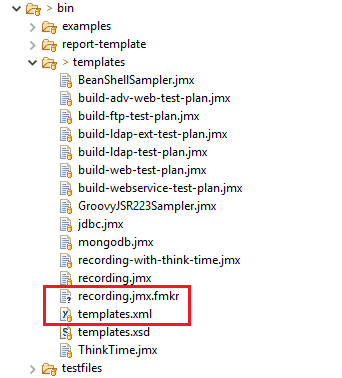 Figure 1 - template folder
2 Template declaration
Section titled “2 Template declaration”2.1 Basic template declaration
Section titled “2.1 Basic template declaration”First of all you must declare your template. To do that, look into the templates.xml file.
This file respect a DTD
Below is the already existing Recording template declaration inside the templates.xml :
 Figure 2 - recording template declaration
A template declaration is made as follow :
templateelement which contains the information described in the following tagsnameelement which contains the template name the user will seefileNameelement which contains the relative path of the template.descriptionelement which uses html to describe the templateoptionalparameters tag (will be discussed later)
2.2 Customizable template declaration
Section titled “2.2 Customizable template declaration”Let’s say we want the exact same Recording template as in the 2.1 section, but we want to choose the name of the xml file where the recording of view result tree will be saved.
To do so we will use the parameters tag to tell JMeter to ask the user about a name for the concerned file :
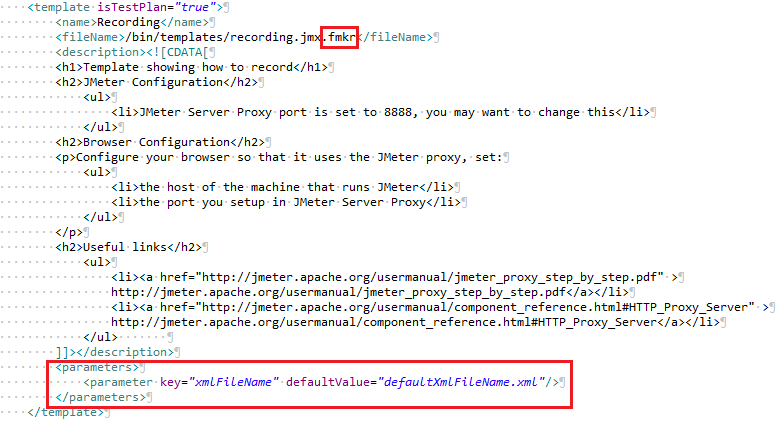 Figure 3 - recording template with parameters
Let’s see what changed here.
Firstly, customs templates are .jmx.fmkr files and not only .jmx.
Lastly, we added a parameters tag.
As you can see in the image, a parameters tag contains parameter tags.
Parameter tags are empty and contains 2 attributes :
keyis the name of the parameter you will ask the user to fill.defaultValueis as its name says, the default value the user will see for the parameter.
3 Template file
Section titled “3 Template file”3.1 Basic template file
Section titled “3.1 Basic template file”The template file is the one you used in the fileName tag when you declared your template. A template file is just the saving of a JMeter test plan.
3.2 Customizable template file
Section titled “3.2 Customizable template file”In the 2.2 section we saw that a custom template file is a .jmx.fmkr file.
The single difference between them is the .jmx.fmkr will be analyzed by JMeter to
detect customs tag. If a custom tag is found, JMeter will try to replace it by the corresponding given value from the user.
A custom tag is defined as follow :
[object Object]This is based on Freemarker alternative Interpolation syntax. Let’s illustrate how it works with an example.
Consider the following part of the recording.jmx template file :
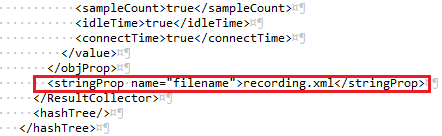 Figure 4 - recording.jmx save file
The surrounded area correspond to the name of the xml file where the View Results Tree output will be saved.
As it is, when you use the template you will always have the same saving filename : recording.xml.
To make it customizable, change your recording template declaration in the templates.xml files by the
one shown in the 2.2 section. Then, rename the recording.jmx file to recording.jmx.fmkr.
When it’s done, Change the above selected line by this one :
[object Object]It’s over ! With this configuration, if you chose to use the recording template, JMeter will ask you
a xmlFileName (correspond to the key value in the declaration).
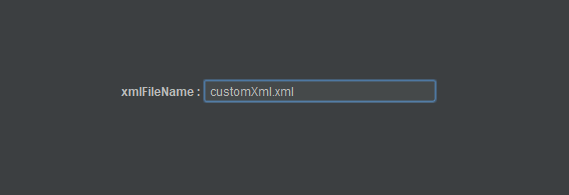 Figure 5 - JMeter asks you the value you want to put for the key
Then, you will find the expected value in the created template where you placed the [=xmlFileName] tag :
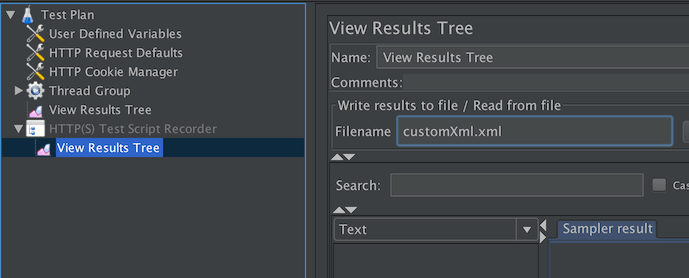 Figure 6 - the value changed