

Configure the JMeter View Results Tree listeners: properties, defaults, and practical usage notes for building reliable load tests.
Part of the Listeners category. Also documented in context in the full Component Reference.
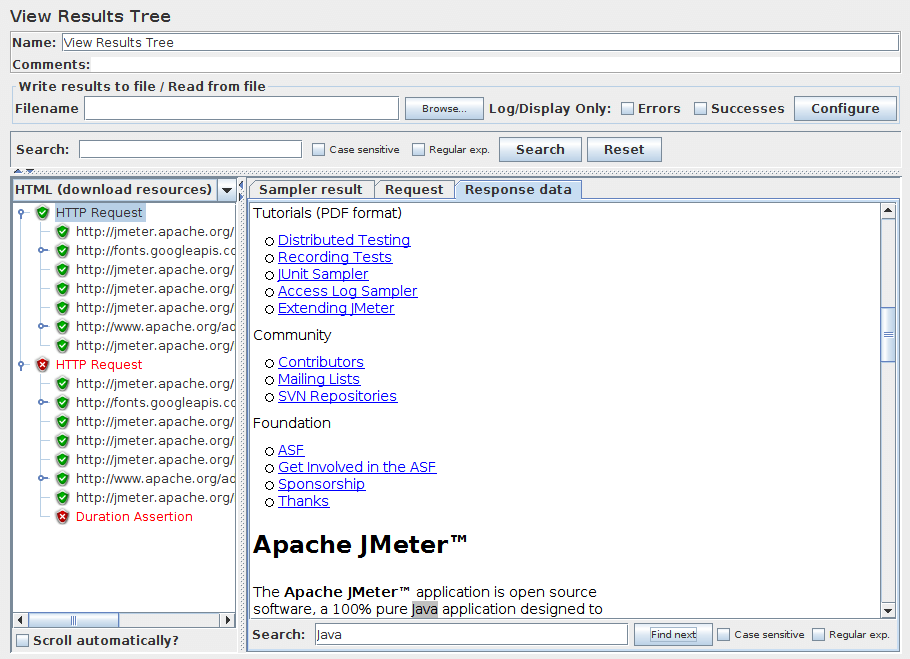
The View Results Tree shows a tree of all sample responses, allowing you to view the
response for any sample. In addition to showing the response, you can see the time it took to get
this response, and some response codes.
Note that the Request panel only shows the headers added by JMeter.
It does not show any headers (such as Host) that may be added by the HTTP protocol implementation.
There are several ways to view the response, selectable by a drop-down box at the bottom of the left hand panel.
CSS/JQuery Tester | The CSS/JQuery Tester only works for text responses. It shows the plain text in the upper panel. The “Test” button allows the user to apply the CSS/JQuery to the upper panel and the results will be displayed in the lower panel. The CSS/JQuery expression engine can be JSoup or Jodd, syntax of these 2 implementation differs slightly. For example, the Selector a[class=sectionlink] with attribute href applied to the current JMeter functions page gives the following output: Match count: 74 Match[1]=#functions Match[2]=#what_can_do Match[3]=#where Match[4]=#how Match[5]=#function_helper Match[6]=#functions Match[7]=#__regexFunction Match[8]=#__regexFunction_parms Match[9]=#__counter … and so on … |
Document | The Document view will show the extract text from various type of documents like Microsoft Office (Word, Excel, PowerPoint 97-2003, 2007-2010 (openxml), Apache OpenOffice (writer, calc, impress), HTML, gzip, jar/zip files (list of content), and some meta-data on “multimedia” files like mp3, mp4, flv, etc. The complete list of support format is available on Apache Tika format page. :::note A requirement to the Document view is to download the Apache Tika binary package (tika-app-x.x.jar) and put this in JMETER_HOME/lib directory. ::: If the document is larger than 10 MB, then it won’t be displayed. To change this limit, set the JMeter property document.max_size (unit is byte) or set to 0 to remove the limit. |
HTML | The HTML view attempts to render the response as HTML. The rendered HTML is likely to compare poorly to the view one would get in any web browser; however, it does provide a quick approximation that is helpful for initial result evaluation. Images, style-sheets, etc. aren’t downloaded. |
HTML (download resources) | If the HTML (download resources) view option is selected, the renderer may download images, style-sheets, etc. referenced by the HTML code. |
HTML Source formatted | If the HTML Source formatted view option is selected, the renderer will display the HTML source code formatted and cleaned by Jsoup. |
JSON | The JSON view will show the response in tree style (also handles JSON embedded in JavaScript). |
JSON Path Tester | The JSON Path Tester view will let you test your JSON-PATH expressions and see the extracted data from a particular response. |
JSON JMESPath Tester | The JSON JMESPath Tester view will let you test your JMESPath expressions and see the extracted data from a particular response. |
Regexp Tester | The Regexp Tester view only works for text responses. It shows the plain text in the upper panel. The “Test” button allows the user to apply the Regular Expression to the upper panel and the results will be displayed in the lower panel. The regular expression engine is the same as that used in the Regular Expression Extractor. For example, the RE (JMeter\w*).* applied to the current JMeter home page gives the following output: Match count: 26 Match[1][0]=JMeter - Apache JMeter</title> Match[1][1]=JMeter Match[2][0]=JMeter" title="JMeter" border="0"/></a> Match[2][1]=JMeter Match[3][0]=JMeterCommitters">Contributors</a> Match[3][1]=JMeterCommitters … and so on … The first number in [] is the match number; the second number is the group. Group [0] is whatever matched the whole RE. Group [1] is whatever matched the 1st group, i.e. (JMeter\w*) in this case. See Figure 9b (below). |
Text | The default Text view shows all of the text contained in the response. Note that this will only work if the response content-type is considered to be text. If the content-type begins with any of the following, it is considered as binary, otherwise it is considered to be text. image/ audio/ video/ |
XML | The XML view will show response in tree style. Any DTD nodes or Prolog nodes will not show up in tree; however, response may contain those nodes. You can right-click on any node and expand or collapse all nodes below it. |
XPath Tester | The XPath Tester only works for text responses. It shows the plain text in the upper panel. The “Test” button allows the user to apply the XPath query to the upper panel and the results will be displayed in the lower panel. |
Boundary Extractor Tester | The Boundary Extractor Tester only works for text responses. It shows the plain text in the upper panel. The “Test” button allows the user to apply the Boundary Extractor query to the upper panel and the results will be displayed in the lower panel. |
Scroll automatically option permit to have last node display in tree selection
With Search option, most of the views also allow the displayed data to be searched; the result of the search will be high-lighted
in the display above. For example the Control panel screenshot below shows one result of searching for “Java”.
Note that the search operates on the visible text, so you may get different results when searching
the Text and HTML views.
Note: The regular expression uses the Java engine (not ORO engine like the Regular Expression Extractor or Regexp Tester view).
If there is no content-type provided, then the content
will not be displayed in the any of the Response Data panels.
You can use Save Responses to a file to save the data in this case.
Note that the response data will still be available in the sample result,
so can still be accessed using Post-Processors.
If the response data is larger than 200K, then it won’t be displayed.
To change this limit, set the JMeter property view.results.tree.max_size.
You can also use save the entire response to a file using
Save Responses to a file.
Additional renderers can be created.
The class must implement the interface org.apache.jmeter.visualizers.ResultRenderer
and/or extend the abstract class org.apache.jmeter.visualizers.SamplerResultTab, and the
compiled code must be available to JMeter (e.g. by adding it to the lib/ext directory).
The Control Panel (above) shows an example of an HTML display.
Figure 9 (below) shows an example of an XML display.
Figure 9a (below) shows an example of a Regexp tester display.
Figure 9b (below) shows an example of a Document display.
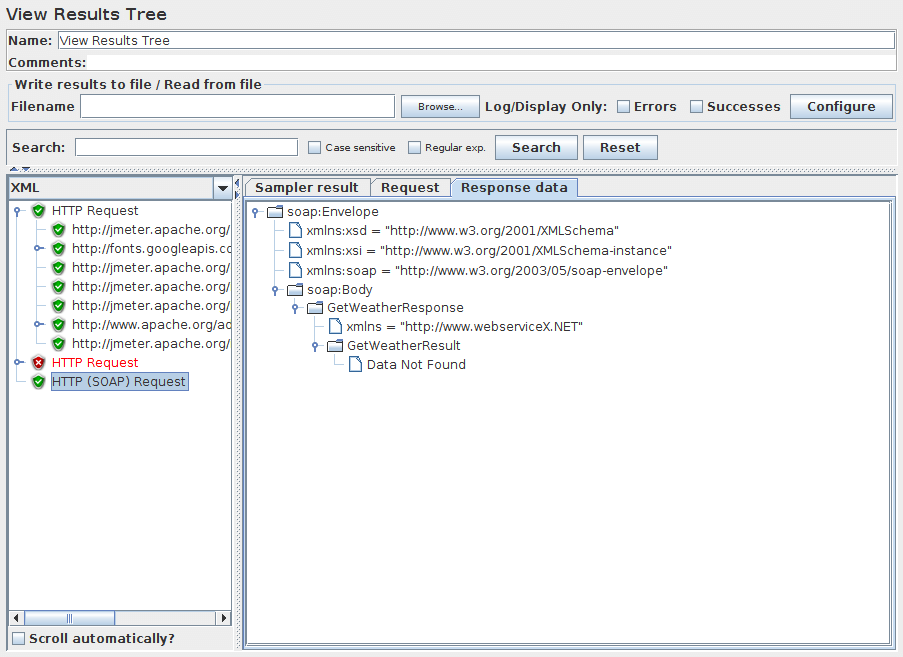 Figure 9 Sample XML display
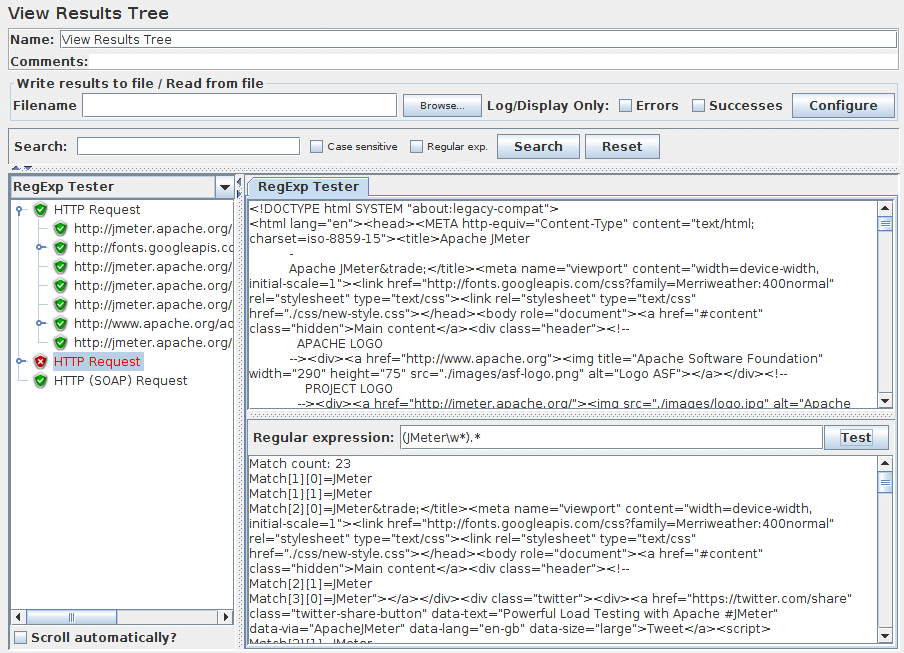 Figure 9a Sample Regexp Test display
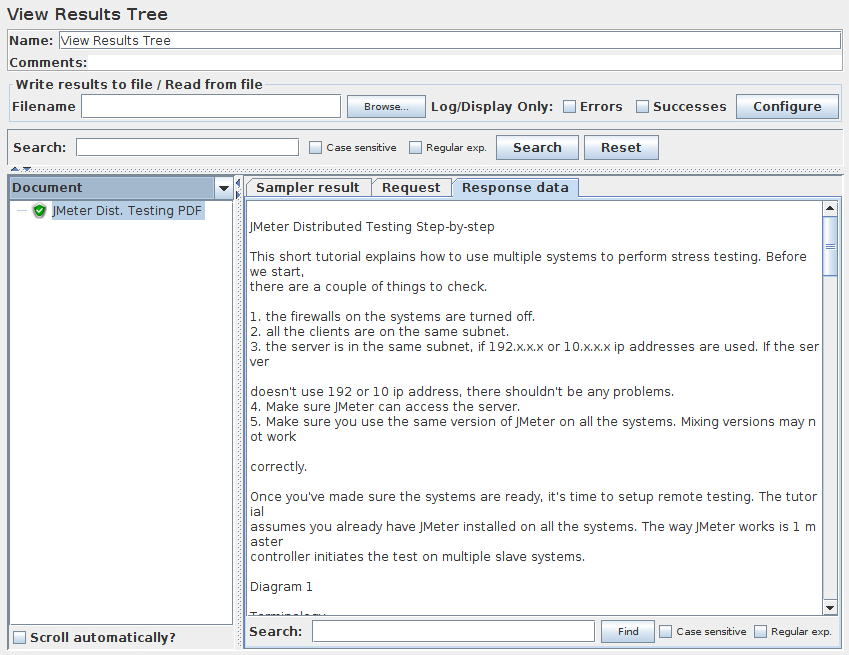 Figure 9b Sample Document (here PDF) display